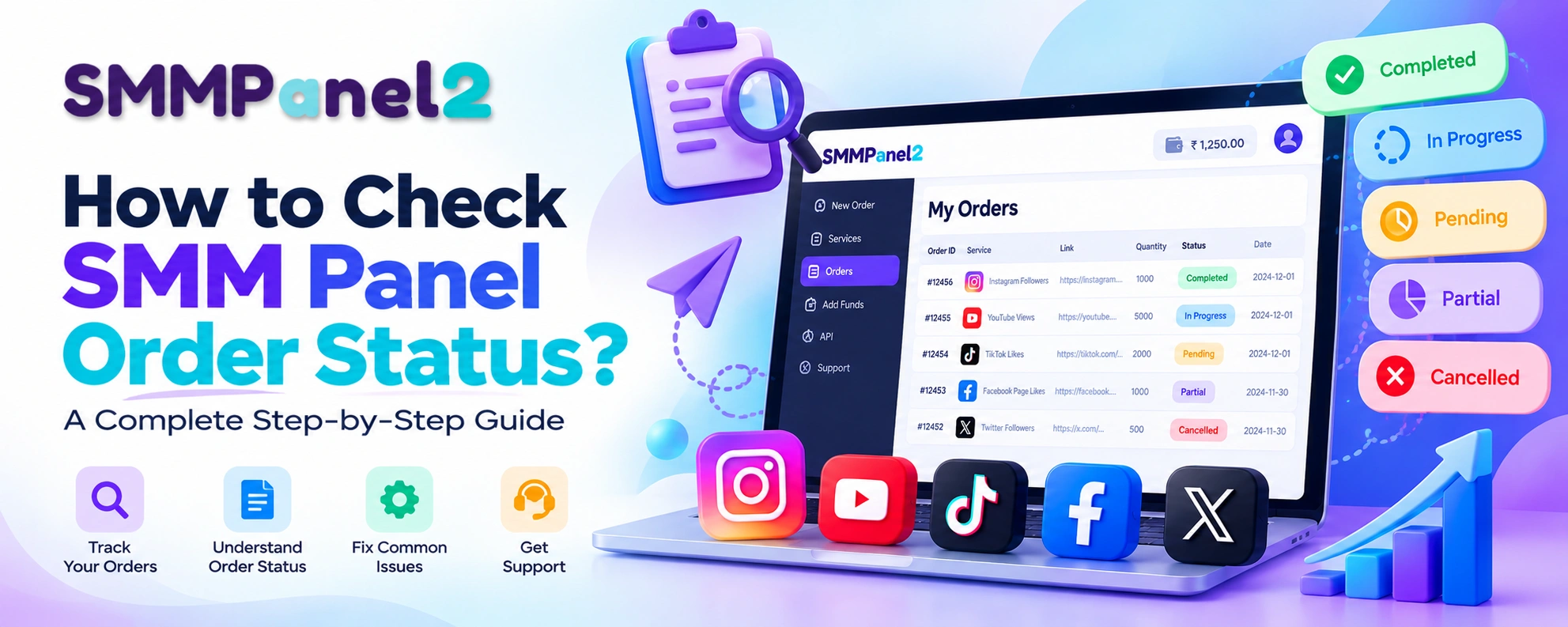
How to Check SMM Panel Order Status
After placing an order through an SMM panel, you may want to know whether the order has started, how much progress it has made, or whether it has been completed. This is why checking your SMM panel order status is an important part of managing your social media services.
An order status shows the current stage of your order. Depending on the service and panel, it may show that the order is waiting to start, is being processed, has been completed, or could not be completed as expected.
If you are using SMMPanel2, you can check your orders through the account dashboard. The exact status and the information displayed may vary depending on the service and its processing system.
In this guide, you will learn how to check your SMM panel order status step by step, understand common order statuses, identify possible reasons for delays, and learn when to contact support.
What Is an SMM Panel Order Status?
An SMM panel order status is an update that tells you what is happening with an order you have placed.
For example, you might place an order for an eligible social media service. Immediately after placing it, the order may not be completed. It may first need to be accepted by the system and then move into processing.
Your order status helps you understand whether you need to wait, check your order details, or contact the support team.
An order page may display information such as:
- Order ID: A unique number used to identify your order.
- Service: The service you selected.
- Link: The social media profile, post, video, or other target you submitted.
- Quantity: The amount you ordered.
- Status: The current stage of the order.
- Charge: The amount charged for the order, when displayed.
- Start count: The starting count recorded by the system, when available.
- Remains: The remaining quantity reported by the system, when available.
Not every panel displays all these details. The information available depends on the panel's dashboard and the service being used.
Why is the order status important?
It helps you avoid placing duplicate orders, understand delays, check whether an order has finished, and give the support team the information needed to investigate a problem.
How to Check SMM Panel Order Status on SMMPanel2
You can check an order through your SMMPanel2 account. Follow these steps.
Step 1: Log In to Your Account
Open the SMMPanel2 website and log in using your registered account details.
Make sure you are using the correct account. If you placed an order from another account, the order may not appear in your current order history.
Step 2: Open the My Orders Section
After logging in, open the My Orders section of your dashboard.
This section is used to review orders you have placed. It helps you find the order you want to check and view its available details.
If you are new to the platform, read the guide explaining how an SMM panel works to understand the basic process of adding funds, placing an order, and managing orders.
Step 3: Find the Correct Order
Look through your order history and identify the order you want to track.
Use the order ID if it is available. You can also check the service name, target link, quantity, and order date to make sure you have selected the correct order.
This step is especially important if you have placed several orders for the same service.
Step 4: Check the Current Status
Look at the status displayed beside your order.
The status tells you the current stage recorded by the system. For example, a pending order may still be waiting to start, while a completed order has been marked as finished by the system.
Remember that a status label alone may not explain every detail. If an order is delayed or shows an unexpected result, check the other order details before taking action.
Step 5: Review the Order Details
Check the order link, quantity, service, and any other information displayed.
Make sure the target link is correct and that you selected the intended service. An incorrect link or unsuitable target can affect whether an order can be processed.
If your dashboard displays a start count or remaining quantity, use these details to better understand the reported progress. Keep in mind that counts may not update instantly and can differ from what you see on a social media platform.
Step 6: Decide What to Do Next
Once you have checked the status and details, choose the next step.
- If the order is still waiting to start, check whether it is within the service's stated processing window.
- If it is processing, allow time for the system to update.
- If it is completed, verify the result on the target page where possible.
- If it is partial, failed, or cancelled, review the service conditions and contact support if the result needs investigation.
Avoid placing the same order again just because the first order has not updated immediately. A duplicate order may create another charge or cause overlapping activity.
What Do Different SMM Panel Order Statuses Mean?
Different SMM panels and service providers may use different status labels. The meanings below explain common labels, but your panel's displayed status and service terms should take priority.
1. Pending
Meaning: The order is waiting to begin or has not yet moved into active processing.
A pending status does not automatically mean that the order has failed. The system may still need to accept the order or wait for processing capacity.
What you should do:
- Check whether the order details are correct.
- Review any processing information provided for the service.
- Allow the stated waiting period to pass.
- Contact support if the order remains pending beyond the expected time.
Do not assume that every pending order will start within the same number of minutes. Processing times can vary by service.
2. In Progress
Meaning: The order is being processed.
The system has moved the order beyond the waiting stage, but the requested work may not yet be finished.
For example, if an order is being processed in stages, the displayed status may remain in progress while the service works toward the requested quantity.
What you should do:
- Check the latest status and any available progress details.
- Avoid submitting a duplicate order without checking the original.
- Contact support if the order appears stuck beyond the stated processing window.
3. Processing
Meaning: The order is undergoing processing, although the exact meaning depends on the panel.
Some systems use “Processing” and “In Progress” in similar ways. Other systems may distinguish between the two.
Do not rely only on the wording to decide whether an order is delayed. Check the panel's explanation, the order details, and any service-specific instructions.
4. Completed
Meaning: The system has marked the order as finished.
A completed status usually means that the order has reached the completion stage according to the service system. However, it does not necessarily guarantee that every result will remain unchanged indefinitely.
For example, counts on a social media platform may later change because of platform updates, removals, or other factors.
What you should do:
- Check the target page when relevant.
- Compare the visible result with the service terms.
- Save the order ID if the result appears incomplete or different from what was expected.
If the order says completed but the expected result is not visible, do not immediately place another order. First, check whether the displayed information has updated and contact support with the order details if needed.
5. Partial
Meaning: The system has recorded that only part of the requested order was completed.
For example, the system may report that an order did not reach the full requested quantity. The exact calculation and handling of partial orders depend on the service.
Check the order details to understand the reported result. If the panel displays a remaining quantity or adjusted charge, review that information carefully.
If you believe the order should have been completed in full, contact support and provide the order ID.
6. Cancelled
Meaning: The order has been marked as cancelled.
A cancelled order may not have been processed, or processing may have stopped under the service's rules. The reason is not always shown in the status label.
Check the order details and any cancellation information provided by the panel. If you do not understand why the order was cancelled, ask support to review it.
Do not assume that every cancelled order can be restarted or automatically refunded. The available options depend on the panel's policies and the circumstances of the order.
7. Failed or Rejected
Meaning: The system could not accept or complete the order as expected.
Possible causes can include an invalid target link, an unsupported service target, a service interruption, or another processing issue. These are possible causes, not a confirmed explanation for every failed order.
What you should do:
- Recheck the target link.
- Confirm that the selected service supports your target.
- Read the service requirements.
- Contact support if the reason is unclear.
Avoid submitting the same order repeatedly until you understand what caused the problem.
How to Check SMM Panel Order Status Using an API
An API can help developers and resellers check order information from their own systems instead of opening the dashboard manually for every order.
SMMPanel2 provides API documentation for supported operations. The documented API endpoint is:
https://smmpanel2.com/api/v2
The documentation specifies POST requests and JSON responses. It also describes an order-status action and other operations.
What Information Can an Order Status API Return?
Depending on the operation and response, order information may include fields such as:
- Order status
- Charge
- Starting count
- Remaining quantity
- Currency
The exact fields depend on the API response. Developers should use the official documentation as the source of truth rather than assuming that every field will be returned for every request.
How Does API Order Tracking Work?
At a high level, the process is:
- Obtain API access through the panel's supported account process.
- Read the official API documentation.
- Send a correctly formatted request using the documented method and parameters.
- Read the JSON response returned by the API.
- Match the response to the correct order ID.
- Display or store the status in your own dashboard, if needed.
For example, a reseller may use an API to show the status of customer orders inside their own website. This can make order management easier when many orders need to be checked.
The exact request parameters and response structure should be taken from the SMMPanel2 API guide. Do not share API keys publicly or place secret credentials in front-end code that visitors can inspect.
If you only need to check a few orders, using the account dashboard may be simpler than setting up an API integration.
Why Is My SMM Panel Order Still Pending?
A pending order can be frustrating, especially when you expect it to start quickly. However, there is no single reason that explains every pending order.
Here are some possible causes and the steps you can take.
The Order Is Waiting to Be Processed
Some services need time before processing begins. The waiting period can vary depending on the service and its current workload.
What to do: Check the service information and allow the stated processing window to pass before contacting support.
The Service Is Experiencing a Delay
A service may be slower than usual because of temporary technical issues, limited capacity, or other operational conditions.
What to do: Check the order status again later. If the order remains unchanged beyond the expected period, ask support to investigate.
The Target Link May Be Incorrect
The link submitted with an order may be incomplete, incorrect, inaccessible, or unsupported by the selected service.
What to do: Review the submitted link and compare it with the service requirements. If you discover an error, contact support before placing another order.
The Service May Not Support Your Target
Different services can have different requirements. A service intended for one type of post, account, or platform feature may not work with another target.
What to do: Read the service description and confirm that your target meets its requirements.
The Dashboard Has Not Updated Yet
Sometimes the displayed information does not change at the same time as the underlying process.
What to do: Refresh the order page and check again after a reasonable interval. If the status remains unchanged, provide the order ID to support.
These are troubleshooting possibilities, not a guarantee that any one cause applies to your order. The actual reason may require a review of the order record.
What Should You Do If Your SMM Panel Order Status Is Not Updating?
If an order has shown the same status for longer than expected, follow a clear troubleshooting process.
Step 1: Record the Order ID
Save the order ID and the date you placed the order. These details help you identify the correct order later.
Step 2: Check the Order Details
Review the service, target link, quantity, and displayed status. Look for any message or instruction related to the order.
Step 3: Refresh the Dashboard
Open the order history again and check whether the status has changed. If you are using an API, verify that your application is reading the correct order ID and handling the returned response properly.
Step 4: Check the Service Information
Review any available service-specific processing information. Do not assume that every service has the same start time or completion window.
Step 5: Avoid Duplicate Orders
Do not submit a second order simply because the first one has not updated. First confirm whether the original order is still active.
Step 6: Contact Support
If the order is still delayed or its status appears incorrect, create a support ticket through the available account support process.
Include the order ID, service name, target link, current status, order date, and a short explanation of the issue. Share only the information needed to investigate the order, and do not send passwords or secret API keys.
You can review the SMMPanel2 guide to how the panel works for information about its account and support process.
Can You Cancel or Refill an SMM Panel Order?
Cancellation and refill are different actions. Whether either option is available depends on the service and the order's current state.
When Can an Order Be Cancelled?
A cancellation option may be available for some orders, but it is not guaranteed for every service or status.
For example, an order that has already been processed may not be eligible for cancellation. An order that is waiting or experiencing a problem may still need to be reviewed before a cancellation decision can be made.
Before requesting cancellation:
- Check the order's current status.
- Read the service conditions.
- Check whether the panel provides a cancellation option.
- Contact support if the available options are unclear.
Do not assume that a cancellation request will automatically stop an order or return funds immediately.
What Is an SMM Panel Refill?
A refill is a service-specific option that may be available when a qualifying order needs additional support under the provider's refill conditions.
A refill is not the same as placing a new order. It may have eligibility rules, a time limit, or other conditions.
If you want to understand how refills work, read the SMMPanel2 guide to SMM panel refill features.
Before requesting a refill, check whether the order and service are eligible. Do not assume that every service includes refill support or that a refill will always be approved.
How to Contact SMMPanel2 Support About an Order
If you cannot resolve an order issue yourself, contact the support team through the available support option in your account.
A clear support request helps the team understand the problem without needing to ask for basic details again.
Include the following information:
- Order ID: The number associated with the order.
- Service name: The service you selected.
- Current status: For example, pending, in progress, or completed.
- Order date: When you placed the order.
- Issue description: Explain what you expected and what is happening instead.
- Relevant evidence: Add a screenshot if it helps explain the issue, while hiding sensitive information.
For example, you could write:
“Hello, I would like help checking my order status. My order ID is [Order ID]. The current status is [Status], and the order was placed on [Date]. I have checked the order details, but the status has not changed as expected. Could you please review the order and advise me on the next step?”
Replace the bracketed details with your actual information before sending the message.
Avoid opening multiple tickets for the same issue unless support asks you to do so. Keeping the discussion in one ticket can make the issue easier to follow.
Frequently Asked Questions
Q1. How do I check my SMM panel order status?
Log in to your SMM panel account, open the My Orders section, find the order using its ID or details, and review the current status. On SMMPanel2, you can use the account dashboard to review your orders.
Q2. Why is my SMM panel order still pending?
A pending order may be waiting to start, experiencing a service delay, or awaiting processing by the system. Check the service information and order details. If the order stays pending beyond the expected processing window, contact support.
Q3. What does in progress mean in an SMM panel?
In progress generally means that an order is being processed but has not yet been marked as completed. The exact meaning depends on the panel and service.
Q4. What does completed mean in an SMM panel?
Completed generally means that the system has marked the order as finished. If the visible result does not match your expectations, review the order details and contact support if needed.
Q5. Why does my order say completed when the result looks incomplete?
The dashboard and the social media platform may not show changes at exactly the same time. The displayed status may also reflect the service system's completion criteria. Check the order details and ask support to investigate if the difference remains.
Q6. Can I cancel an SMM panel order after placing it?
Cancellation depends on the service, order status, and panel rules. Check the available order options or contact support before assuming that the order can be cancelled.
Q7. Can I check multiple order statuses through an API?
SMMPanel2's API documentation describes order-status operations, including checking order information. Review the official API documentation for the supported request format, parameters, and limits before implementing multiple-order tracking.
Q8. What information should I provide when contacting support?
Provide the order ID, service name, order date, current status, target link, and a clear explanation of the issue. Include a relevant screenshot if necessary, but never share your password or secret API key.
Q9. Does every SMM panel use the same order statuses?
No. Status labels, their exact meanings, and the available actions can differ between panels and service providers. Always follow the explanations and service conditions provided by the panel you are using.
Checking your SMM panel order status helps you understand what is happening with an order and decide what to do next. Start by opening your account's order history, finding the correct order, and reviewing its status and details.
If an order is pending or processing, check the service information before taking further action. If it appears stuck, verify the target link, avoid duplicate orders, and contact support with the order ID. Developers and resellers can also use an API when they need to manage order information programmatically.
For SMMPanel2 users, the account guide, API documentation, and refill guide provide additional information about managing orders and understanding available features.
About the Author
Shevam — Founder of SMMPanel2 | SEO & Digital Marketing Professional
Shevam is the founder of SMMPanel2 and a digital marketing professional based in Lucknow, India, with over 10 years of experience in SEO and digital marketing. His professional focus includes search visibility, content strategy, and digital marketing operations.
Through SMMPanel2, Shevam aims to make social media service management easier to understand and navigate for creators, businesses, digital marketing agencies, and resellers. His approach emphasizes clear service information, transparent ordering requirements, and practical guidance to help users make informed decisions.
This guide reflects a practical, educational approach to understanding SMM panels, their functionality, service selection, and responsible social media marketing practices.
“Our focus is to make social media service management simple, transparent, and accessible while helping users manage their campaigns efficiently.”
— Shevam, Founder of SMMPanel2
Learn more about Shevam.